Friday, 5 June 2020

Chapter 14 // Exercise 10 - Principles & Practice Using C++

In this exercise I am using Visual Studio 2017 and the graphics files found here:
https://github.com/l-paz91/principles-practice/tree/master/Graphics%20Files

Chapter 14 // Exercise 10

Define a class Pseudo_window that looks as much like a Window as you can make it without heroic efforts. It should have rounded corners, a label, and control icons. Maybe you could add some "fake contents", such as an image. It need not actually do anything. It is acceptable (and indeed recommended) to have it appear within a Simple_window.

Github: https://github.com/l-paz91/principles-practice/tree/master/Chapter%2014/Exercise%2010


I'd definitely say that no heroic efforts were made.


Chapter 14 // Exercise 10 - Principles & Practice Using C++

Thursday, 4 June 2020

Chapter 14 // Exercise 9 - Principles & Practice Using C++

In this exercise I am using Visual Studio 2017 and the graphics files found here:
https://github.com/l-paz91/principles-practice/tree/master/Graphics%20Files

Chapter 14 // Exercise 9

Define a Group to be a container of Shapes with suitable operations applied to the various members of the Group. Hint: Vector_ref. Use a Group to define a checkers (droughts) board where pieces can be moved under program control.

Github: https://github.com/l-paz91/principles-practice/tree/master/Chapter%2014/Exercise%209


This is pretty basic and it's all hardcoded so there's no full draughts game going on (yet...). I know he said to use a Vector_ref however I decided to use 3 Fl_Images for the board and pieces. There is actually only 1 light piece and 1 dark piece but they're just set to draw in multiple places to save on objects. 

The move location is stored in vectors of Rectangles which can easily be deleted and changed when a piece is overtaken. The move system works off directions like NorthWest. 

I don't think this is entirely what he meant in the exercise. I think maybe he wanted a group that contained a way to make a board, draw an image, draw a circle. I think that's kind of unnecessary considering you have everything you need grouped together anyway in Graph.h.


Wednesday, 3 June 2020

Chapter 14 // Exercise 8 - Principles & Practice Using C++

In this exercise I am using Visual Studio 2017 and the graphics files found here:
https://github.com/l-paz91/principles-practice/tree/master/Graphics%20Files

Chapter 14 // Exercise 8

Define a class Octagon to be a regular octagon. Write a test that exercises all of its functions (as defined by you or inherited from shape).

Github: https://github.com/l-paz91/principles-practice/tree/master/Chapter%2014/Exercise%208

.

Tuesday, 2 June 2020

Chapter 14 // Exercise 7 - Principles & Practice Using C++

In this exercise I am using Visual Studio 2017 and the graphics files found here:
https://github.com/l-paz91/principles-practice/tree/master/Graphics%20Files

Chapter 14 // Exercise 7

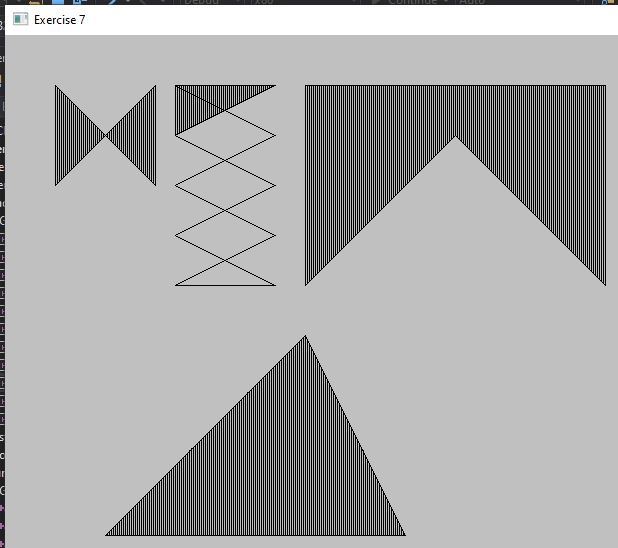
Define a Striped_closed_polyline using the technique from Striped_rectangle (this requires some algorithmic inventiveness).

Github: https://github.com/l-paz91/principles-practice/tree/master/Chapter%2014/Exercise%207


I'm not quite sure how I solved this one. It feels like I stumbled across the right answer somehow. It took some serious debugging to figure out what I was doing wrong (especially when I was almost there but a few lines kept being off by 1 pixel...)

I started off by creating a bounding box for the polygon. That way I could draw a line and see if it intersects with another line (this returns where the intersection happened). This is due to the fact that a closed_polyline might have gaps in it.
Chapter 14 // Exercise 7 - Principles & Practice Using C++


Chapter 14 // Exercise 7 - Principles & Practice Using C++

I then used the code from striped_rectangle to see how it looks:

Chapter 14 // Exercise 7 - Principles & Practice Using C++

This gave the line pattern; I just needed to figure out a way of only drawing part of it. I decided to go loop through each stripe and see if it hit the lines in the shape and push the intersection point back into a vector. Because it was testing each stripe individually the intersect points are pushback in order of corresponding x and y points. In some cases however, this can give more than 2 intersections. 


Chapter 14 // Exercise 7 - Principles & Practice Using C++

I am however stuck on shapes that have multiple intersections. To be honest I would just do a design like this in Photoshop or create a vector image in Illustrator. I feel this is adequate enough for the exercise.

I suppose eventually though I could write a new intersect function that checks for multiple line intersection and returns the closest intersection.

Monday, 1 June 2020

Chapter 14 // Exercise 6 - Principles & Practice Using C++

In this exercise I am using Visual Studio 2017 and the graphics files found here:
https://github.com/l-paz91/principles-practice/tree/master/Graphics%20Files

Chapter 14 // Exercise 6

Define a Striped_circle using the technique from Striped_rectangle.

Github: https://github.com/l-paz91/principles-practice/tree/master/Chapter%2014/Exercise%206


This one took me a while to solve as maths is not my strong point. I went through quite a few different methods (that didn't work). The main trouble for me is trying to find the correct formulas I need when I don't actually know the technical name for what I'm doing.

I knew the radius of the circle and the y co-ordinate of the line to draw; the x co-ord was missing. It took me a while to successfully google what I was looking for. This video was extremely helpful:
https://www.youtube.com/watch?v=egtrsPZ7THQ

We can solve for x by re-arranging the equation of a circle or using Pythagoras. Both need the use of sqrt() to solve. I decided to use pythag as it's nicer to look at.

Chapter 14 // Exercise 6 - Principles & Practice Using C++

Here is a snippet of the video to help visualise what has happened:
Chapter 14 // Exercise 6 - Principles & Practice Using C++
For a particular circle lets say the center is {200,200} and the radius is 100. The stripe width is 10. That means we know the length of the Y side is 10 and the length of the R side is 100. We need to find the length of the X side. Pythag is:
a² + b² = c² or in our case x² + y² = r²
Solved for x gives:
x² = r² - y²

You can then just square root X to get the length. When using fl_line() to draw the line, the length of the stripe is as simple as (centerX - X, Y) and (centerX + X, Y). Utilising some for loops; different sized stripes can be used to fill the circle.